Our bottom line: Bitwarden comes out ahead with pricing, plans, and security, while 1Password ties with form filling and platform compatibility. Otherwise, these password managers tie, making them comparable across the board.


By:Gunnar Kallstrom , Updated October 15, 2025 Head of information systems and cybersecurity research
Updated October 15, 2025

1Password and Bitwarden are among the best password managers available today. These two services are comparable in price, features and compatibility, especially with 1Password’s recent launch of a full-fledged Linux version.
Bitwarden has a leg up with its forever-free plan and great security features, while 1Password ties in form-filling and platformcompatibility. You can’t go wrong with 1Password or Bitwarden. These comparable password managers tie in our book.
Which password manager should you get? Let’s have 1Password and Bitwarden duke it out and see which one best fits your needs.
| Review factor | Winner |
|---|---|
| Price and plans | Bitwarden (5) |
| Platform compatibility | Tie: 1Password (5), Bitwarden (5) |
| User experience (UX) | Bitwarden (5) |
| Form filling | Tie: 1Password (4.5), Bitwarden (4.5) |
| Security | Bitwarden (5) |
| Two-factor authentication (2FA) | Bitwarden (4.7) |
| Best overall | Bitwarden (4.8) |
Our bottom line: Bitwarden comes out ahead with pricing, plans, and security, while 1Password ties with form filling and platform compatibility. Otherwise, these password managers tie, making them comparable across the board.
| Password manager | Details | Basic plan features |
|---|---|---|
| 1Password Overall rating: (4.6) Read our full 1Password review. | Starting price: $2.39/mo Individual Platform compatibility: Android, iOS, Linux, Mac, Web (Brave, Chrome, Edge, Firefox, Safari), Windows Security: AES 256-bit encryption, 2FA |
|
| Bitwarden Overall rating: (4.8) Read our full Bitwarden review. | Starting price: $19.80/year Premium ($1.65/mo) Platform compatibility: Chrome, ChromeOS, Firefox, Opera, Safari, Edge, iOS, Android, Windows PC, macOS, Linux, Docker, command line interface (CLI) managers for Windows, Unix, Chocolatey, Homebrew, and Snap Security: AES 256-bit encryption, 2FA |
|
Price winner: Bitwarden | |
|---|---|
| 1Password (4.5) | $36 per year for premium; $48 per year for up to six users; $19.95 per month for 10 users on the Team plan |
| Bitwarden (5) | Free Forever plan, or $19.80/year Premium ($1.65/mo) for premium Personal; $40 per year for up to six people |
1Password and Bitwarden each offer cost-effective password manager plans, with Bitwarden stepping ahead thanks to its Free Forever plan and only $19.80/year Premium ($1.65/mo) plan — about one-third the cost of 1Password’s Premium individual plan. Even if you add five other people, getting Bitwarden for $8 less per year is still less expensive and equally feature-rich.
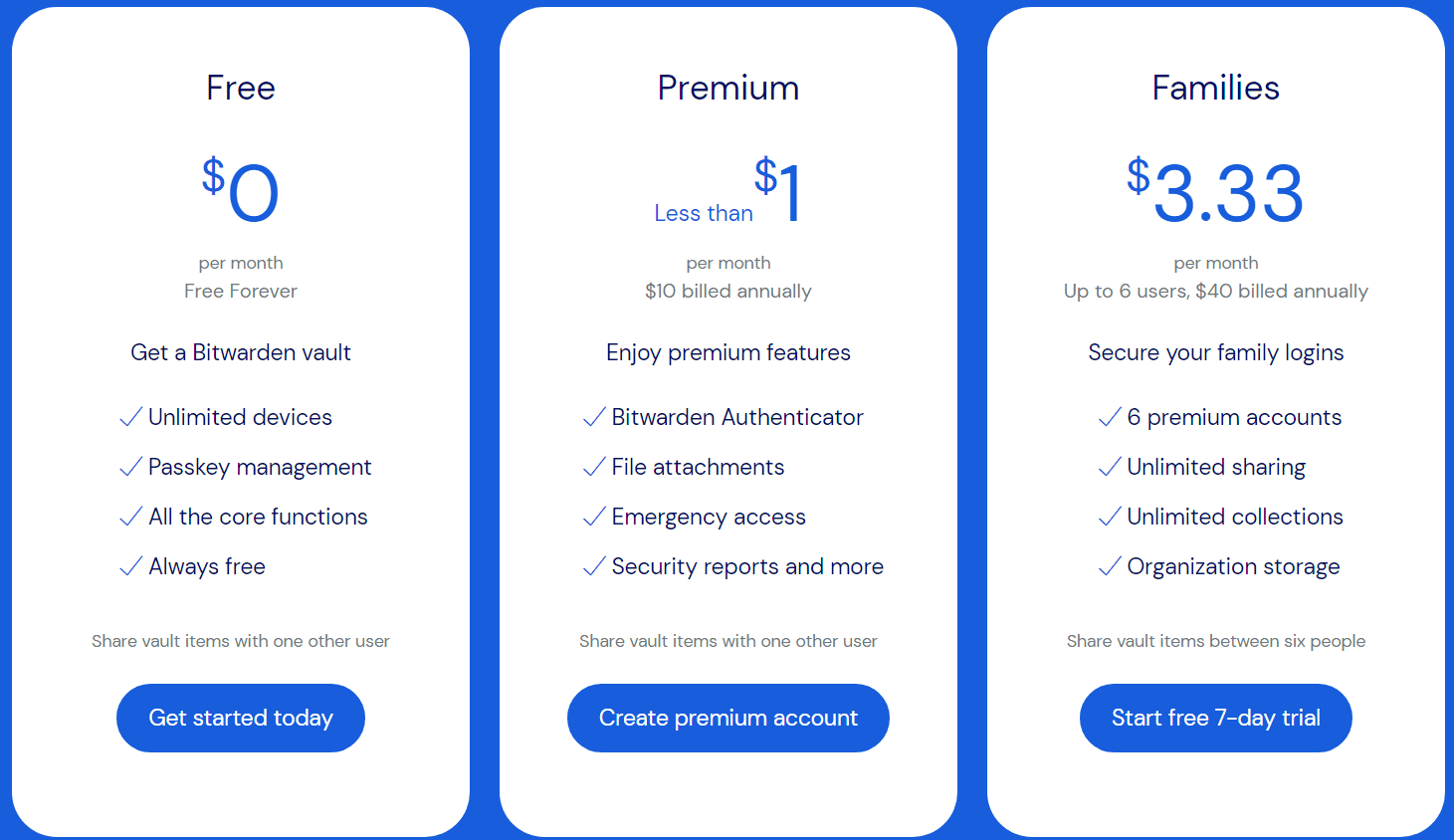
If you operate a business, you can have 10 users on a Team plan with 1Password for $19.95 per month, a better deal than 10 people at $3 per month for the Business Bitwarden plan.
But if you exceed 10 people, you’ll need 1Password’s Business plan for $7.99 per user, which increases the cost. Bitwarden sets a flat rate of $5 per person for its Enterprise plan, but 1Password says these plans require a custom quote, which likely means that it’s going to cost more.
Winner: Bitwarden wins plans and pricing because of its transparency with the Enterprise plan cost per user per month and its Free Forever plan.
Platform compatibility winner: Tie | |
|---|---|
| 1Password (5) | OS: Windows 10 (64-bit or later); Mac (Catalina 10.15 or later); Linux; iOS (15.5 or later); Android (Pie or later) Supported browsers: Brave, Chrome, DuckDuckGo, Edge, Firefox, Safari,TorVivaldi |
| Bitwarden (5) | OS: ChromeOS, Windows PC, macOS, iOS, Android, Linux, Chocolatey, Unix, Homebrew, Docker, CLI managers for Windows, and Snap Supported browsers: Brave, Chrome, Edge, Firefox, Safari Tor, Opera, Vivaldi |
With the addition of 1Password’s full support for Linux on desktop, the two password managers are comparable in compatibility with major platforms, though Bitwarden also names Unix, Homebrew, Docker, CLI managers for Windows, and Snap. Because 1Password supports the latest versions of Linux, I think these two services are comparable, and you can use either with any modern platform.
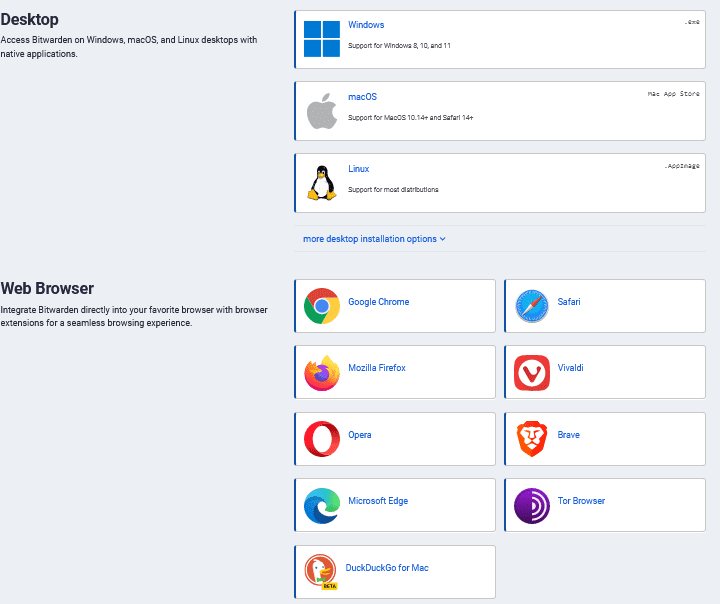
Bitwarden’s free version is compatible with nearly every platform, which is a huge selling point. Often, the free plans are limited in platforms. As an added bonus, Bitwarden is accessible in more than 50 languages, making it usable by more people worldwide.
1Password also earns accolades for its compatibility across operating systems and browsers. This is convenient and important if you use various platforms and browsers like I do. I also like that 1Password includes single sign-on (SSO) with its Business and Enterprise plans, while Bitwarden offers it only with Enterprise subscriptions.
UX winner: Tie | |
|---|---|
| 1Password (4.5) | Easy-to-navigate design, but some functions were clunky. |
| Bitwarden (5) | Clean, minimal in a good way, and ease of editing vault items |
While both password managers offer full functionality via their websites and browser extensions (especially with the updated 1Password X), you’ll also need to download the desktop app, which I found was the best way to get started with both password managers.
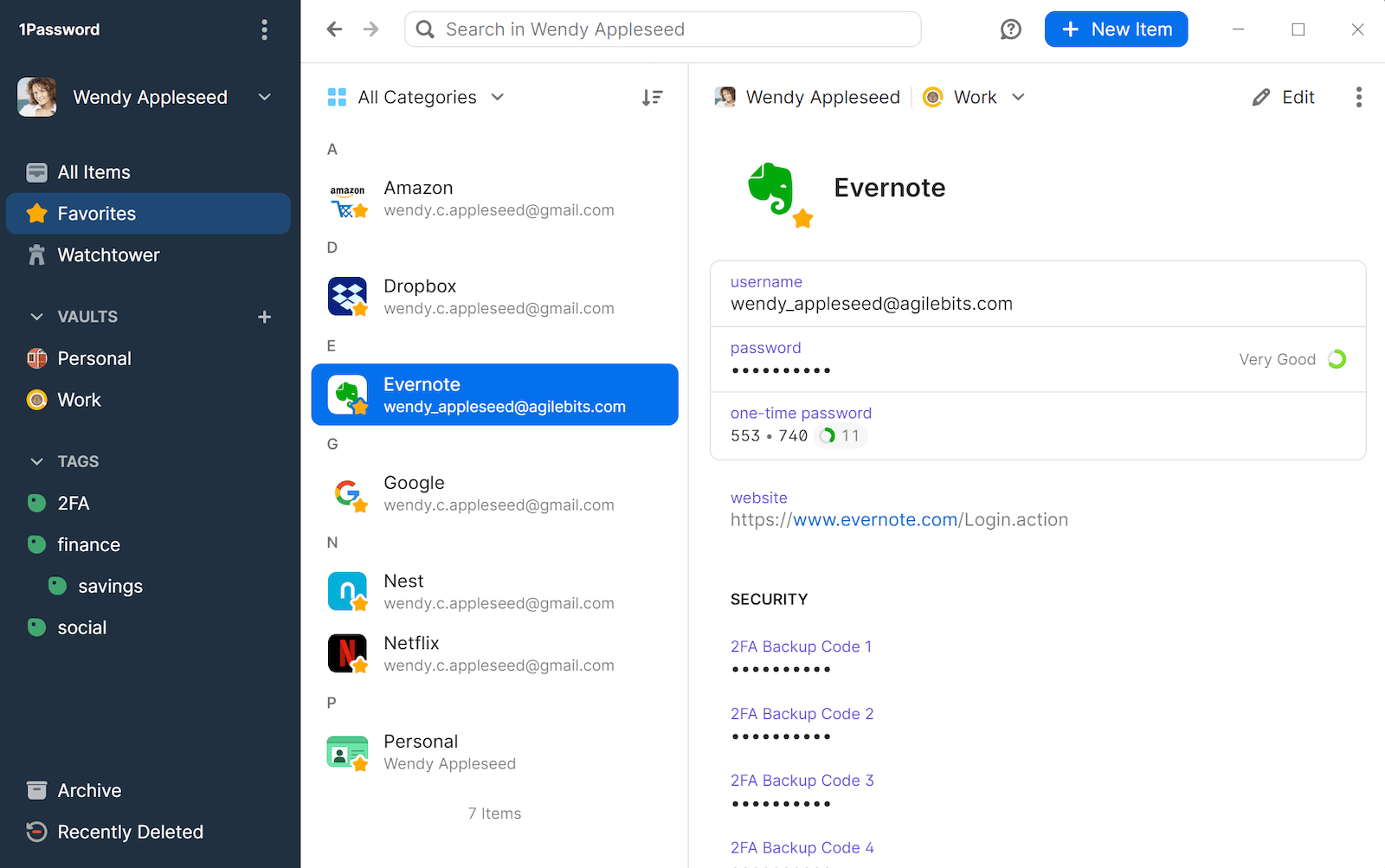
1Password’s desktop is minimal but concise, so I was not overwhelmed when finding my way around the dashboard and features. Bitwarden’s desktop app is also clean and user-friendly. Again, both are minimal — and this is a good thing.
On 1Password’s current desktop dashboard, the left navigation acts as a main menu, with categories organized in the next column, such as Google, Dropbox, and Netflix. When I click on a category — say Evernote — the third column on the screen displays all the details and allows me to easily edit.
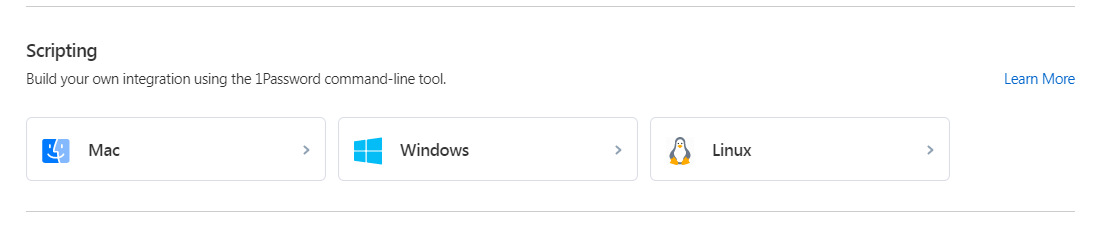
With the 1Password Mac version, the dropdown menu installs directly into the Mac menu bar, giving you easy access to your 1Password vault without going on the desktop app.
Moving my way around the Bitwarden desktop app was also a cinch. It feels like navigating my email inbox, making it highly intuitive. You don’t need to be a technophile to work with either of these password managers. Adding to and editing the vault was simple.
Bitwarden’s browser extension made it easy to add vault items, which is a feature many free password managers don’t offer. With Bitwarden, you can do this with the Free Forever plan, which goes back to why this password manager won for plans and pricing.
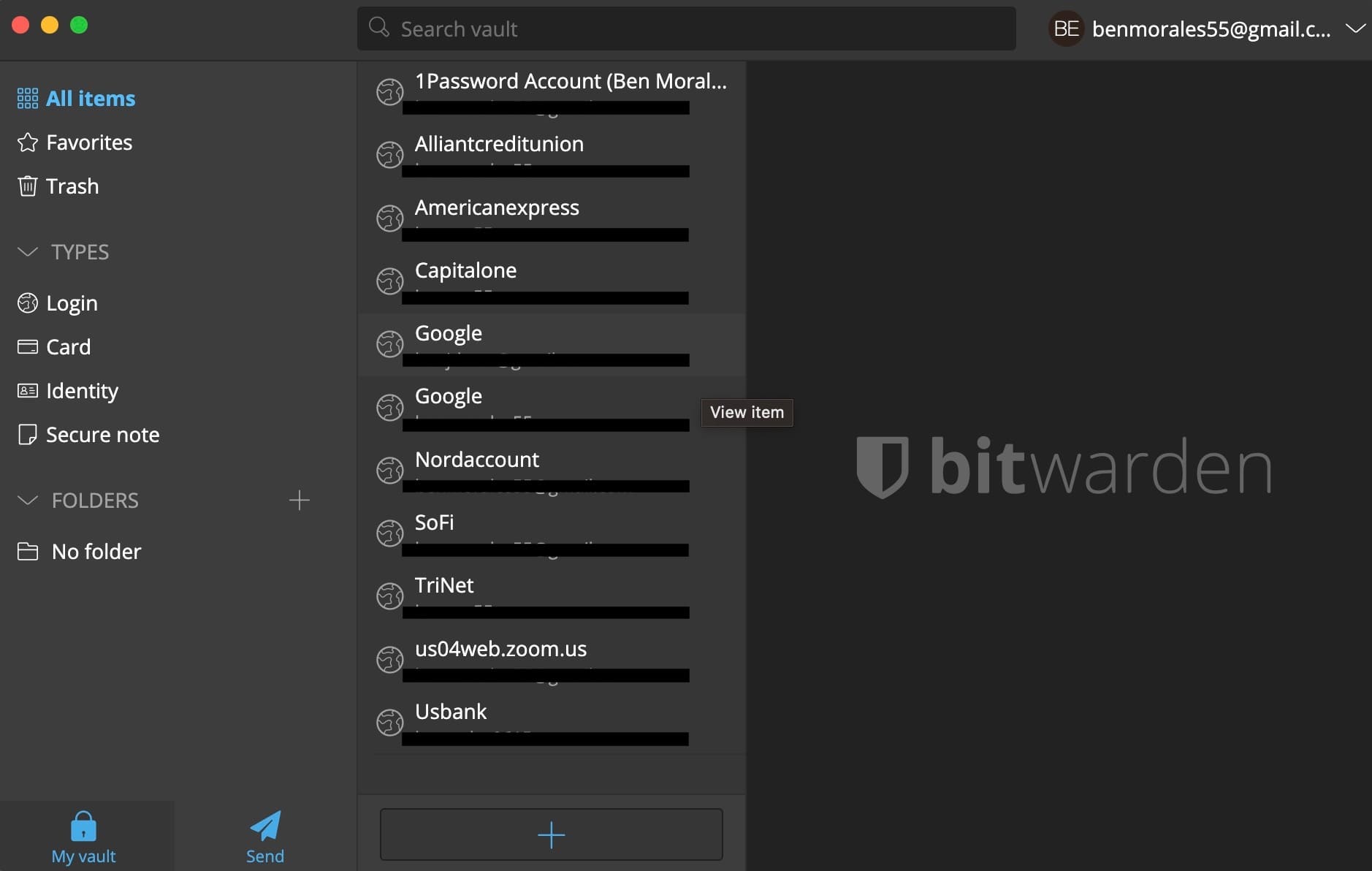
Both 1Password and Bitwarden mobile apps were equally easy to navigate, with main sections in the left toolbar so I could easily manage my account.
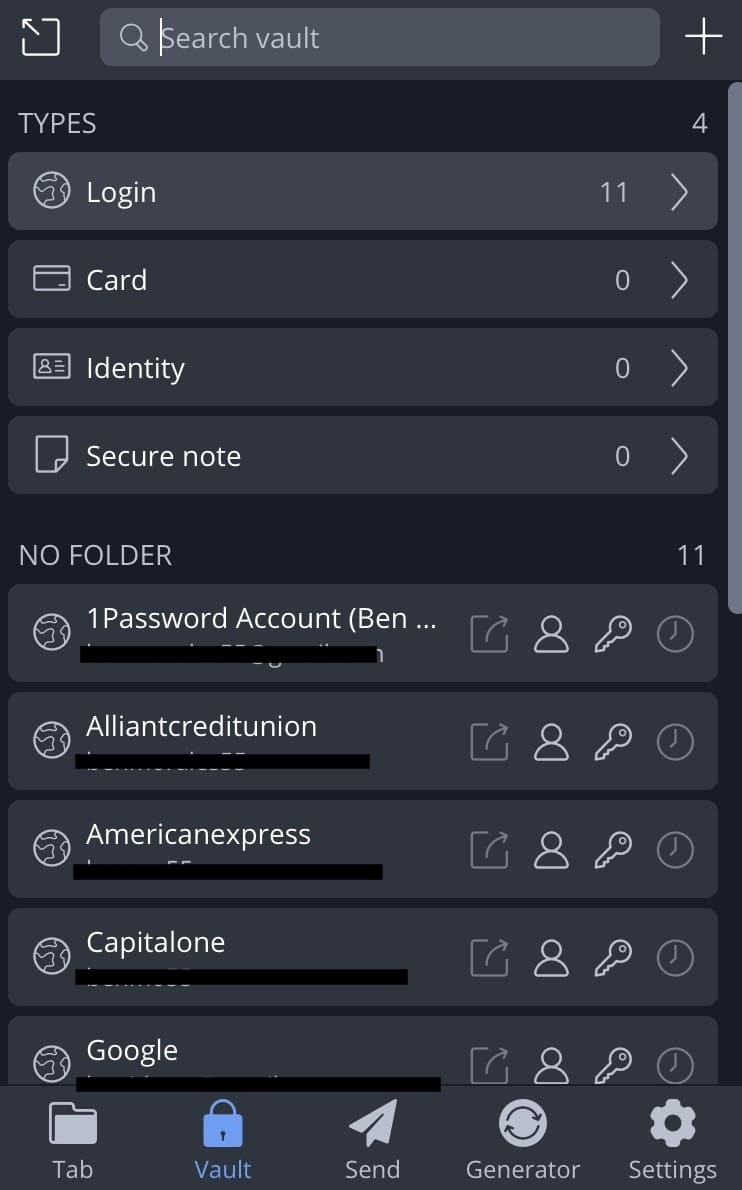
Winner: Bitwarden wins for UX because it offers an easy-to-navigate desktop app, seamless browser extension, and a mobile app that is equally intuitive.
Form filling winner: Tie | |
|---|---|
| 1Password (4.5) | Simple form-filling and now Watchtower (a password monitoring feature) is available for mobile users. |
| Bitwarden (4.5) | Easy to set up and flexible |
1Password and Bitwarden offer comparable form-filling, but 1Password gains an edge because Bitwarden lacks a vault template for addresses. While you can store them in a custom vault entry, they do not work with autofill. This is a pain when dealing with shipping and billing information, but it’s not a deal-breaker since Bitwarden is a mint password manager in almost every other category.
Another point: Bitwarden’s autofill must be triggered by its browser extension. On the other hand, 1Password (and many others) display an icon in unfilled fields. You may do a little more clicking with Bitwarden, but don’t let this dissuade you from selecting one of the best password managers.
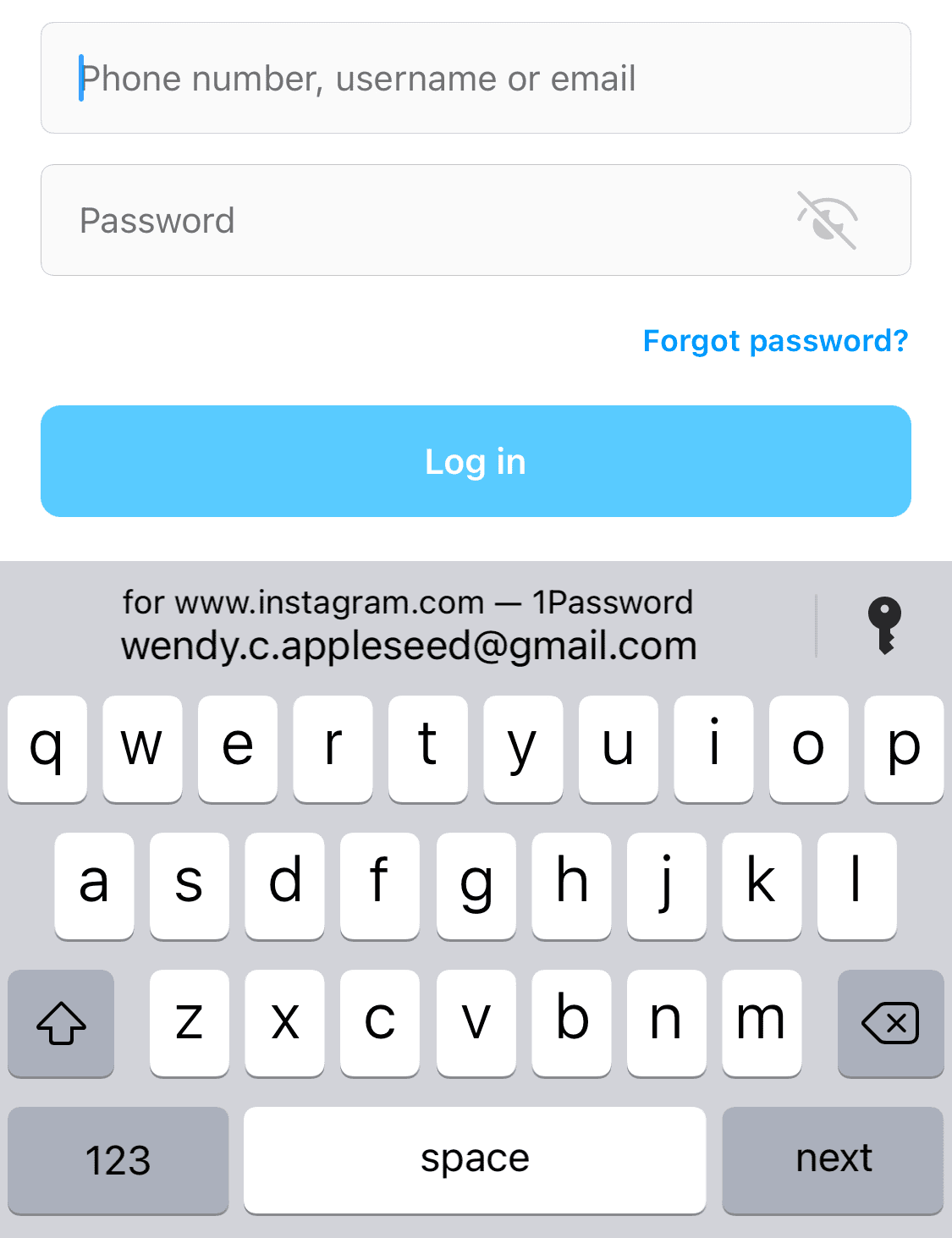
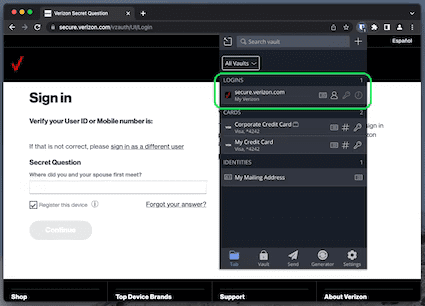
Winner: 1Password and Bitwarden tie for form-filling because while each handles basic autofill requests, there are limitations to vaults and consistency.
Security winner: Bitwarden | |
|---|---|
| 1Password (4.8) |
|
| Bitwarden (5) |
|
Most password managers, including Bitwarden and 1Password, use powerful 256-bit AES encryption, and both password managers’ vaults are unlocked on your device only after you’ve entered your master password.
1Password adds an extra layer of security with a 34-character Secret Key that works alongside your master password. 1Password Watchtower sifts through information to see if information has been compromised, that way I am alerted directly if there is a red flag so I can change the affected password before a cybercriminal lays hands on it.

Bitwarden provides vault health reports. If I reuse a password or create a password that Bitwarden thinks is weak, I get a report of these items before Bitwarden even accesses encrypted versions. Basically, this puts up a stop sign that says, “Wait a minute. This password is vulnerable.”
Both 1Password and Bitwarden have built-in password generators, offer 1GB of secure online storage, and operate on a zero-knowledge model to protect your personal information. I appreciate knowing that not even the password manager can access my data.
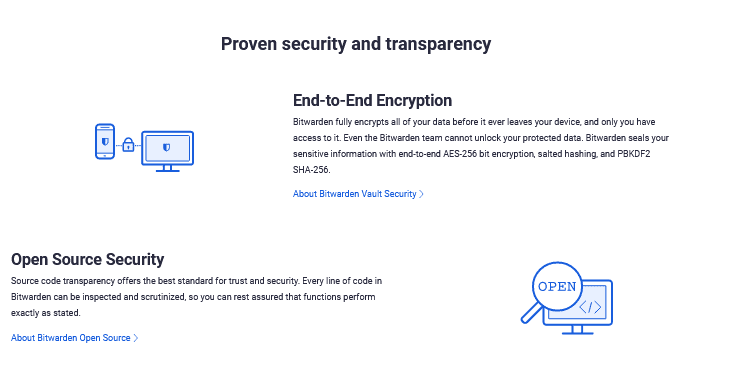
Both platforms are Service Organization Controls (SOC 2) compliant, meaning they have carefully documented security policies and undergo regular audits. (Here are our tips on how to protect your online passwords.)
Winner: Bitwarden wins because, aside from the industry standard 256-bit AES encryption and 2FA, it offers helpful vault health reports.
2FA winner: Bitwarden | |
|---|---|
| 1Password (4.6) |
|
| Bitwarden (4.7) |
|
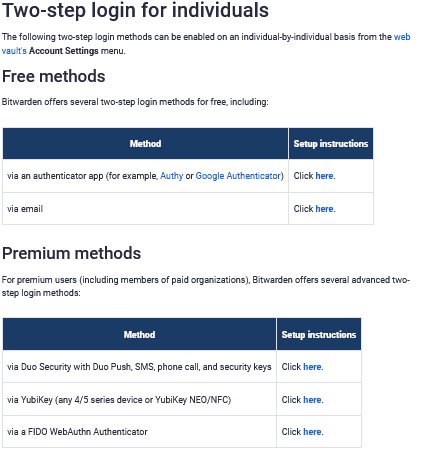
Both 1Password and Bitwarden support 2FA via authenticator apps (which use time-based one-time passwords, or TOTPs) and physical security keys.
Let’s hash out 1Password’s 2FA skills. It is compatible with Authy, Microsoft Authenticator, and Okta Verify, and you can access single sign-on (SSO) with business plans. Like Bitwarden, there’s a simple QR code setup, and both provide biometric unlock capabilities.
I like how Bitwarden offers 2FA via YubiKey and FIDO, which are highly secure. You can choose a free authenticator app, including Authy and Google Authenticator. Email is another 2FA option.
Other features are only available to Premium subscribers. As a Premium subscriber, Bitwarden allows you to enable 2FA with Duo Security with Duo Push, SMS, phone call, and security. The FIDO WebAuthn Authenticator is also a Premium privilege only.
Winner: Bitwarden edges out 1Password in advanced 2FA features available to users, though the basic security features come standard from most password managers.
Bottom line winner: Bitwarden | |
|---|---|
| 1Password (4.6/5) |
Best for: Users who want a simple platform with easy sharing capabilities. |
| Bitwarden (4.8/5) |
Best for: Free password manager with excellent security and features that other password managers offer only with upgrades |
Bitwarden narrowly beats out 1Password as one of the best password managers available. Both offer highly secure platforms with 256-bit AES encryption and zero-knowledge architecture, meaning even the providers can’t access your vault. I found both interfaces simple and intuitive, with a minimal learning curve for setup and daily use.
Bitwarden earns a higher score for its unmatched value. It offers a truly free forever plan that includes unlimited devices, something few other providers allow without charging. You can also share credentials with another user on the free plan — a rare feature among free services. Meanwhile, 1Password offers no free version, and its entry-level plan costs more than Bitwarden’s premium upgrade.
1Password holds a slight edge in form-filling and 2FA flexibility, making it a smoother choice for users who want autofill features to “just work” across platforms. Still, Bitwarden has improved its autofill functionality and includes broad 2FA support with options like TOTP, hardware keys, and third-party authenticators.
If affordability and open-source transparency matter most, Bitwarden is the clear winner. But for those who prioritize convenience and polish, 1Password is still an excellent, secure option.
On the surface, all password managers essentially generate and store passwords. As I evaluated providers, I dug deeper, comparing software on what matters most, including price, platform compatibility, security, and other factors.
I signed up for a plan with each provider to test:
Learn more about our review methodology.

About the Password Manager, Gunnar Kallstrom:
Kallstrom is a Cyber Team Lead for a Department of Defense (DOD) contracting company in Huntsville, Alabama, and has also worked as a computer network defense (CND) Cyber Analyst. An author and content creator for a cybersecurity academy, Kallstrom spent nearly 15 years in the Army as a musician before entering the cybersecurity field.
He holds a bachelor’s degree in music from Thomas Edison State University and a master’s in organizational development and leadership from the University of the Incarnate Word.
Kallstrom has completed several Computing Technology Industry Association (CompTIA) courses, including Security+, Network+, A+ Core 1, and A+ Core 2. He earned a CompTIA Security+ Certification. Additionally, he has completed the Cyber Warrior Academy program with more than 800 hours of hands-on, intensive, and lab-driven technical training in cybersecurity methods and procedures.
Passionate about all things cyber, Kallstrom was a speaker on a panel at the 2022 InfoSec World conference, giving a talk entitled “Hacking into a Cyber Career – True Stories.” Kallstrom is also a mentor to entry-level cybersecurity candidates seeking to break into the field. When he’s not working, he still enjoys playing guitar and fishing (not phishing).